

Recently AutoCAD WS for Android was released. Event, which I guess many of you look forward to. A little later Anywhere Storage function was declared, which allows you to connect your AutoCAD WS web and mobile account to a variety of storage sites like Buzzsaw, Box.net, Dropbox, MobileMe, Egnyte and even to your own File server or SharePoint site.
And since I personally do not use the services of the above on-line repositories, I was pleasantly surprised by the latest innovation in AutoCAD WS – access to the contents of your account as an ordinary folder on your desktop. For me, this option is very useful because it allows me to easily synchronize files between my computer and online directory without having to install additional programs.
The setup is very easy and consist of the following steps
1. Open Computer.
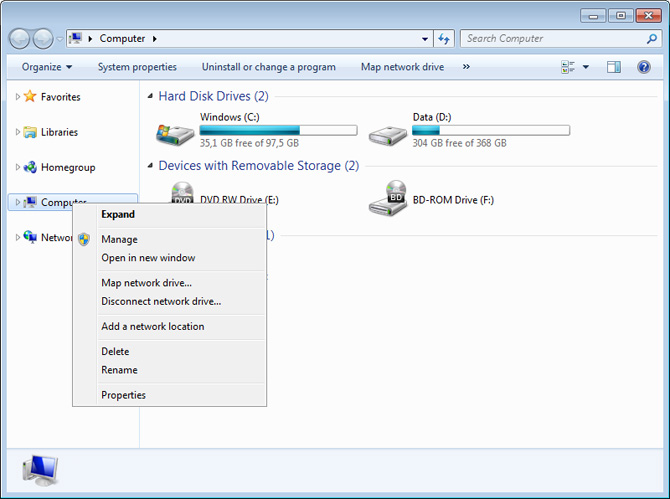
2. Right click on Computer in the left pane of Windows Explorer. Choose Add a network location.
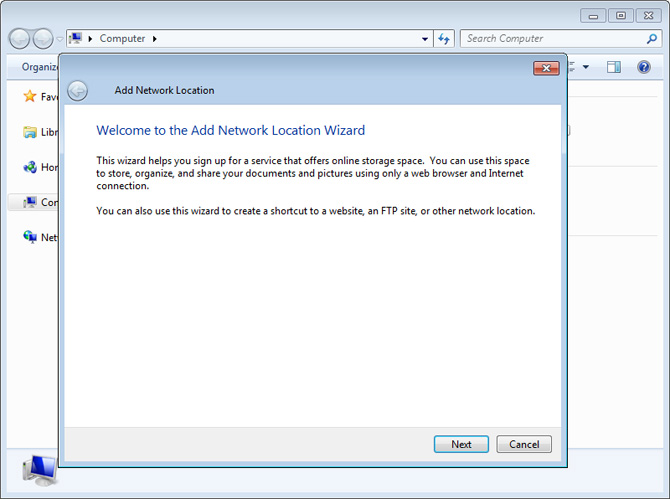
3. Add Network Location Wizard pops up. Click Next.
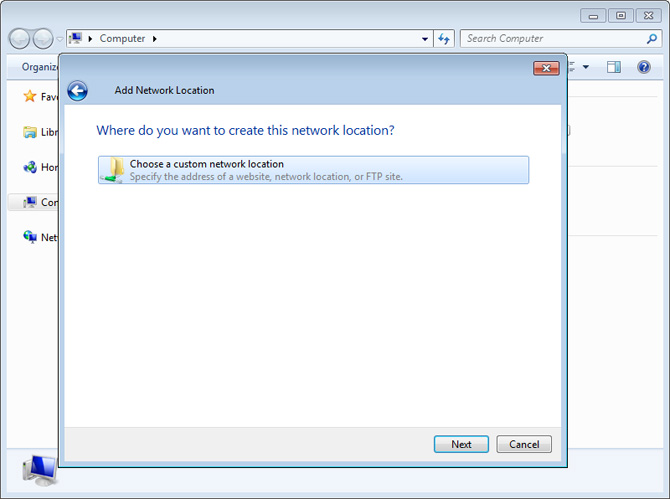
4. On the next step wizard asks you: Where do you want to create this network location? Click Next again.
5. In next window enter the following address: https://dav.autocadws.com/
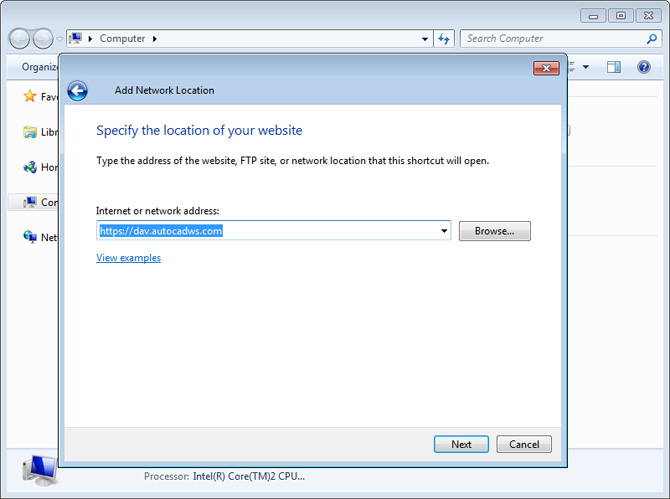
6. Fill your username and password, check box to remember your data and … it`s done. Now you have access to your folder.
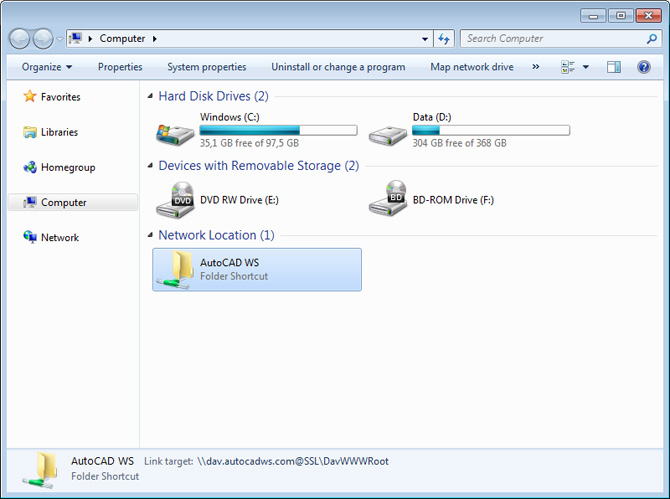
The folder appeared on the home page and below in the left pane of Windows Expolorer and you can access it whenever you need. If you want to add a shortcut on your desktop, simply right click on folder and create one.
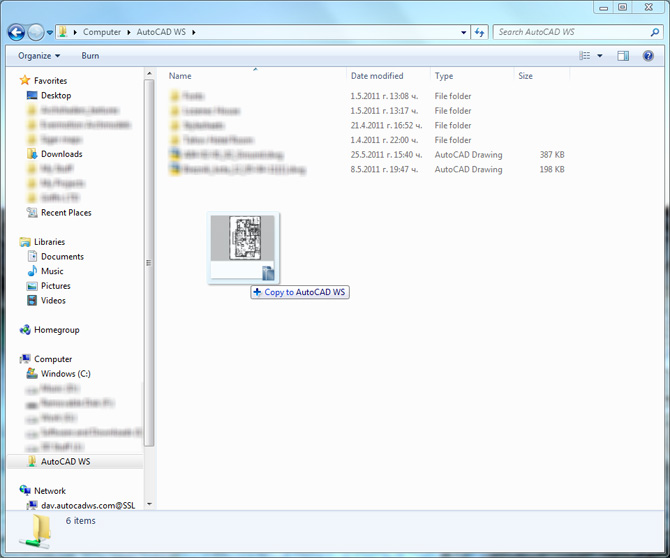
The main advantage of this new feature is that you can upload and download files from online directory simply by drag & drop without using a web browser. Really easy & comfortably.
 Preserve the colors of objects when inserting dwg file into 3ds Max and moving them to new layer
  Embedding AutoCAD drawing in your website with ShareCAD
  V-Ray 3.0 for 3ds Max is here. What`s new in this version?
  How to bring back Drag and Drop in Windows 8
  Infographic: Photoshop CS6 Shortcut Keys
  How to model a pillow in Marvelous Designer
Appreciate it for this post, I am a big fan of this internet site would like to keep updated.
Hi there, You’ve done a fantastic job. I will certainly digg it and personally recommend to my friends. I am sure they will be benefited from this site.
Without the aibilty to create a file from scratch, no thanks. Im playing with AndCAD demo right now and am loving it. New to CAD. Open to suggestions.
Hi,
I`m using a theme for the site. You can search Google for themes.
And for coding. Yes you need to know some basic coding and you can check http://www.w3schools.com for more info.
I hope this will help you.
Good info thanks for the help.
Woot, I will ceraitnly put this to good use!
Hi there! Someone in my Facebook group shared this website with us so I came to check it out. I’m definitely loving the information. I’m bookmarking and will be tweeting this to my followers! Superb blog and great style and design.
Awesome blog you have here but I was curious if you knew of any user discussion forums that cover the same topics talked about in this article? I’d really like to be a part of group where I can get comments from other knowledgeable individuals that share the same interest. If you have any suggestions, please let me know. Bless you!
Hi Simone,
Thank you for taking time to comment in my blog.
About discussion forums for AutoCAD WS you can check the official AutoCAD WS page for more information about the product. You can find it here: http://www.autocadws.com/blog/accessing-autocad-ws-from-your-desktop/
You can also check CAD Forum: http://www.cadforum.cz/forum_en/ There is a lot of useful information in this forum, but you have to register first.
I hope this will help you.