

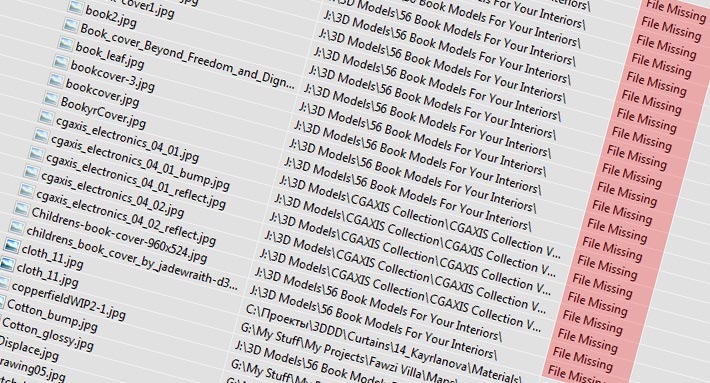
I guess for many people has happened to have problems with missing textures in their work with 3Ds Max. Sometimes this occurs accidentally, in other cases can happen when rearranging files for better organization. This is also likely to happen if you get a file by email, which has not been properly archived. Whatever the reason, it is always annoying when you see the warning Missing External Files, when opening a file. It happens to me too sometimes and to save time from searching for each file, I use some scripts that I would like to share with you.
Lost Textures
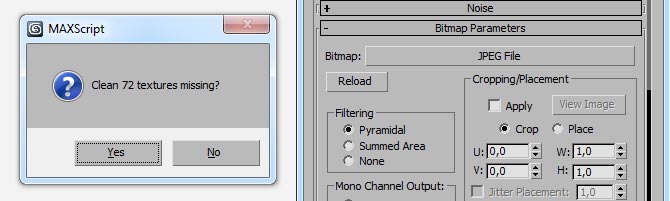
This is the simplest of all the scripts and it just deletes all the missing textures from your materials. Definitely not the best solution, but may be useful in some cases. Simply run it through MAXScript > Run Script… and select Yes to remove the textures.
- Author: Oscar Romero
- Official web page: www.scriptspot.com
- Compatible with 3ds Max: 2012
Change Paths
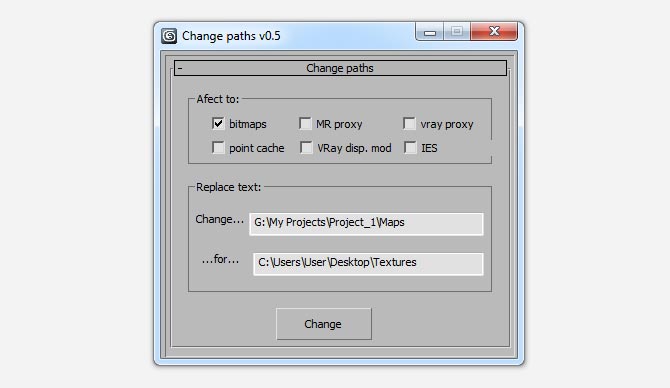
Change Paths does exactly what its name means – change the directory which contains the maps for the project. It recognizes images, Mental Ray and V-Ray Proxy objects, IES files and more. As a disadvantage can be noted that in the new directory beforehand must be copied all textures used in the scene. If this is done the rest of the job is carried out by the script who change the path to all textures in Material Editor.
- Author: Motiva Infografia
- Official web page: www.motivacg.com
File Renamer
Interesting script by Australian artist Travis Williams, with which you can change the textures by simply entering the names of old and new images. It may be useful in some cases.
- Author: Travis Williams
- Official web page: all3dmax.com
- Compatible with 3ds Max: 2010, 2012, 2013
Bitmap Collector
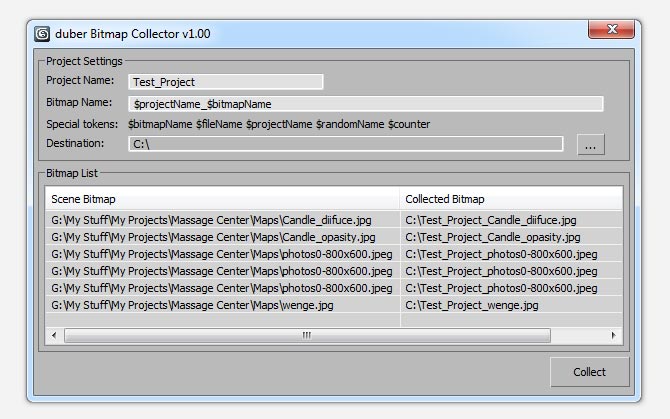
Bitmap Collector is similar to Change Paths, with the difference that it works more automated, it is more easier to work with and do not need to copy anything in advance. The script finds all the textures that you have used in your file, then copy them to a new folder and change the links in Material Editor with the new path. During copying, you can rename the images by adding any of the following tokens:
$projectName – you can set the project name different from filename
$fileName – adds file name to textures names
$bitmapName – keeps the original name of the texture
$randomName – converts the name of the texture in random combinations of numbers and letters
$counter – add sequential numbers to file names
This script is a bit fickle and in order to work normally, there should be no perplexed links to the actual maps. For example, if your textures were located in folder D:\My Projects\Project 1\Textures and after a while you have moved them in D:\My Projects\My Old Projects\Project 1\Textures, Bitmap Collector will give you a lot of errors. Fortunately, this problem can easily be fix if you used it in a combination with any of the tools listed below.
- Author: Duber Studio
- Official web page: www.duber.cz
- Compatible with 3ds Max: 2011 or newer
Relink Missing Files
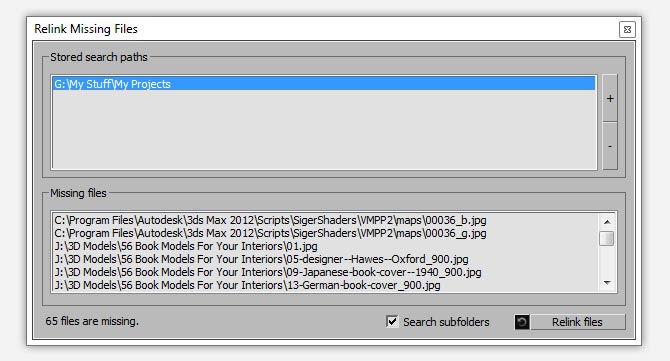
With Relink Missing Files you can fix the mess with missing textures. The script searches the files in subdirectories, so we need only to show him parent folder in which they are located. There is an interesting feature to detect duplicate files, which allows you to choose exactly from which directory you want to load them. According to his author, this tool recognizes all types of files – images, proxy object, etc.
- Author: Nick Moutafis
- Official web page: www.sinok.gr
Relink Bitmaps
And finally, the champion of all similar scripts. Relink Bitmaps is a powerful tool that can quickly repair messy links to images, Mental Ray Proxy, V-Ray proxy, VRayHDRI and IES files. You can add frequently used folders, search sub-folders, find a specific texture or file and more. It is similar to Relink Missing Files, but works better, at least in my opinion. This script is completely free, but if it helps you save time, you can make a modest donation of $10 for the author.
- Author: Colin Senner
- Official web page: www.colinsenner.com
- Compatible with 3ds Max: Max 9 – 2012 (service pack 1+)
 Preserve the colors of objects when inserting dwg file into 3ds Max and moving them to new layer
  Quick modeling of quilted elements in 3ds Max
  Create precise lines in 3ds Max with miauu’s Polyline
  New free collections with textures and 3D models by Xoio
  Free 2D Cutout People for your renders from Skalgubbar
  5 free scripts for faster work with 3ds Max
I don’t understand,relinking textures that everybody talks about is easy;
What a lot of people are looking for is how to delete missed textures from max like in Maya ; we can use delete unused texture!!
for example when you delete an object Max keeps the textures assigned to that object and sometimes you can’t find this texture in material editor to delete it!!!!
remove/delete missing texture isn’t so difficult but 3ds max doesn’t have that feature build-in. You can use Relink Bitmaps or Lost texture, 2 scripts listed above. Better to use Relink Bitmaps to replink as many as possible then remove the remain missing ones. There’s a button on its UI. You can download and try again Relink bitmap by Colin Senner.
emazing. thank you sooo much
Very welcome. If I can be of service anytime in the future, don’t hesitate to contact me. I would reiterate all of these tools are great and get the (inevitable/painful) job done easily and quickly!
Thanks for the referral to Relink Bitmaps!
You are welcome. Thanks for the great script 🙂
v-ray messages
vrmesh file specified for proxy object “v”
Hi Mouath,
For which script are you talking about?
What exactly you like better in Relink Bitmaps than in Relink Missing Files? The latter will find any asset, which I think is great, e.g. for cache files etc.
Hi,
Thank you for your comment. I like Relink Bitmaps more, because it is working faster than Relink Missing Files and the user interface is better.
Otherwise both scripts are doing the same job 🙂
Regards.
1 more question.
What about rename and collect other assets by Bitmap Collector, like “.IES” files and vray proxy objects “.VRMESH”?
Is it possible in the future?
Well, I really don`t know. It depends from plugin`s author.
Thank you for fast replying.
Ok, I’ll try to do as you say and fix all my paths in Asset Tracking by Relink Bitmaps or other same.
Cheers!
Everything works perfect when i fixed ill my paths.
Many thanks for Mladen’s help!
I am glad that I could help you. 🙂
Hi.
Bitmap Collector is a great idea tool, but in max 2012 on Win7x64 appears error message, when i try to use it.
http://tinypic.com/view.php?pic=ipzgxl&s=5#.UtUTmE6_K9I
It can’t copy any textures of my scene – png, jpg and others.
How can i solve this problem?
Thanks.
Hi,
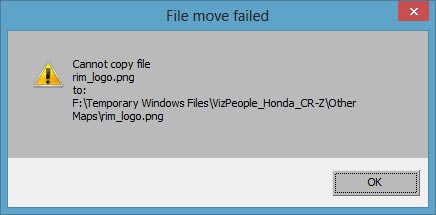
Thank you for your comment. I was able to reproduce the same error. This is a known bug in Bitmap Collector.
What is causing this error message to appear is that the path to your textures has been changed outside 3ds Max. For example if in material editor the path is
D:\My Projects\Project 1\Textures, the textures on your hard drive are probably in different place likeE:\Textures. If you fix the paths to textures inside Max with Asset Tracking or some script like Relink Bitmaps, then Bitmap Collector will work without any problems.Regards.